


Windows Products
- iPod / iPhone Tools
- DVD Cloner Tools
- DVD Creator Tools
- Video Converter Tools
- DVD Ripper Tools
- Audio Tools
- PDF Tools
- Suite Tools

Mac Products
3herosoft iPhone to Computer Transfer for Mac


Do you want to save your precious money on purchasing music on iTunes? Are you annoyed by the incompetence of iTunes to import music on Mac to your iPhone, iPhone 3G, iPhone 3GS, iPhone 4, iPhone 4S? Don't worry now, 3herosoft iPhone to Computer Transfer for Mac will dispel your annoyance by importing music on Mac to iPhone 3G. It allows you to import music, video and pictures to iPhone 3G without the Apple copyright restriction. Music format such as AAC, MP3, WAV, AIFF, M4A are all supported format for the Mac to iPhone Transfer.
 Transfer music/video/podcast/photo between all sorts of iPod/iPhone and Mac
 -
Transfer, copy media files from iPod/iPhone to iTunes
-
Support all Mac OS, iPods, iPhone, even iOS 5 and iTunes 10.6




In this tutorial below we will guide you how to add music files from Mac to iPhone. You should download 3herosoft iPhone to Computer Transfer for Mac first and install it to your Mac. Specially, it also allows you to create and edit your own playlists to manage and classify your songs in good order.
Attention: iPhone and iTunes have supported for many video formats, including MP4, M4V, MOV, MPEG-4, h264 and audio format such as MP3, WAV, AAC, Apple lossless, AIFF. If your video can not transfer successfully, make sure the video or audio format can be suitable for the iPhone supported. If not, firstly you should use 3herosoft iPhone Video Converter for Mac software to convert video or audio to the right format for your file backup on Mac.
 Step1: Install and launch the software
Launch this iPhone to Mac Transfer software and connect your iPhone to Mac. Then you can see your iPhone on the desktop -- an iPhone icon with your iPhone's name under it. Then familiarize yourself with its interface. All information about Mac, such as type, capacity, version, serial number and format, will be shown on the main interface.
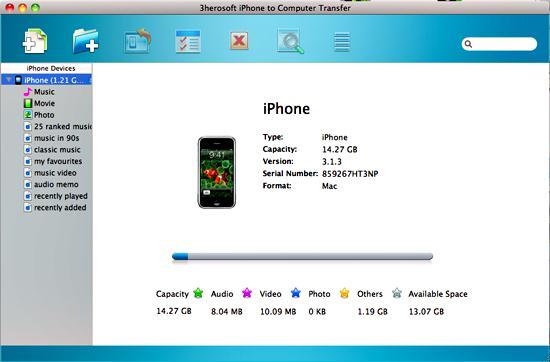 Step2: Check music files you like
In this screen, you should choose "Music" item in the iPhone list, then click "Add files to iPod/iPhone" button to transfer. Now a dialogbox pops up and you can locate and check music files from your Mac.
If you want to add all the files in a folder, please press " Add Folder to iPod / iPhone" button or choose "File > Add folder to list" option and then locate the folder and transfer all the files to iPhone.
 Step3: Add songs from Mac to iPhone
When everything is done, then press the "Open" button in the dialogbox. After that, the selected songs are added to the iPhone without iTunes right now! With this step, you can also copy all of files such as pictures, TV Shows, video and podcasts etc. to iPod/iPhone.

|
Hot Tags: |
||||
 Buy 3herosoft iPhone to Computer Transfer for Mac $25.oo
 Download 3herosoft iPhone to Computer Transfer for Mac 5.50MB
