


Windows Products
- iPod / iPhone Tools
-
- iPod to Computer Transfer

- iPad to Computer Transfer

- iPhone to Computer Transfer
- iPhone Ringtone Maker
- iPhone SMS Transfer
- iPhone Contact Transfer
- iPhone Call List Transfer
- iPhone iBooks Transfer
- iPhone Photo Transfer
- iPod Mate
- iPhone Mate
- iPad Mate
- DVD to iPod Converter
- DVD to iPhone Converter
- DVD to iPad Converter
- iPod Movie Converter
- iPhone Video Converter
- iPad Video Converter
- iPod to Computer Transfer
- DVD Cloner Tools
- DVD Creator Tools
- Video Converter Tools
-
- Video Converter
- iPod Movie Converter
- iPhone Video Converter
- iPad Video Converter
- Apple TV Video Converter
- Video to Audio Converter
- AVI MPEG Converter
- MP4 Video Converter
- PS3 Video Converter
- PSP Video Converter
- WMV Video Converter
- 3GP Video Converter
- FLV Converter
- MOV Converter
- RM Converter
- Zune Video Converter
- BlackBerry Video Converter
- Mobile Phone Video Converter
- Video Converter
- DVD Ripper Tools
-
- DVD Ripper Platinum
- DVD to iPod Converter
- DVD to iPhone Converter
- DVD to iPad Converter
- DVD to Apple TV Converter
- DVD Audio Ripper
- DVD to MP4 Converter
- DVD to PS3 Converter
- DVD to PSP Converter
- DVD to WMV Converter
- DVD to 3GP Converter
- DVD to AVI Converter
- DVD to DivX Converter
- DVD to Pocket PC Ripper
- DVD to Zune Converter
- DVD to BlackBerry Converter
- DVD to Mobile Phone Converter
- DVD Ripper
- DVD Ripper Platinum
- Audio Tools
- PDF Tools
- Suite Tools
-
- Media Toolkit Ultimate

- DVD Ripper Platinum Suite
- DVD Maker Suite
- iPod Mate
- iPhone Mate
- iPad Mate
- DVD to iPod Suite
- DVD to iPhone Suite
- DVD to iPad Suite
- DVD to Apple TV Suite
- DVD to Audio Suite
- DVD to MP4 Suite
- DVD to AVI Suite
- DVD to PS3 Suite
- DVD to PSP Suite
- DVD to WMV Suite
- DVD to 3GP Suite
- DVD to Zune Suite
- DVD to BlackBerry Suite
- DVD to Mobile Phone Suite
- Media Toolkit Ultimate
Mac Products
- iPod / iPhone Tools
-
- iPod to Computer Transfer
- iPhone to Computer Transfer
- iPad to Computer Transfer
- iPhone Ringtone Maker
- iPhone SMS Transfer
- iPhone Contact Transfer
- iPhone Call List Transfer
- iPhone iBooks Transfer
- iPhone Photo Transfer
- iPod Mate for Mac
- iPhone Mate for Mac
- iPad Mate for Mac
- DVD to iPod Converter for Mac
- DVD to iPhone Converter for Mac
- DVD to iPad Converter for Mac
- iPod Video Converter for Mac
- iPhone Video Converter for Mac
- iPad Video Converter for Mac
- iPod to Computer Transfer
- DVD Cloner / Creator Tools
- Video Converter Tools
-
- Video Converter for Mac
- iPod Video Converter for Mac
- iPhone Video Converter for Mac
- iPad Video Converter for Mac
- Apple TV Video Converter for Mac
- Video to Audio Converter for Mac
- MP4 Converter for Mac
- FLV Converter for Mac
- PSP Video Converter for Mac
- BlackBerry Converter for Mac
- Mobile Phone Converter for Mac
- DVD Ripper Tools
- PDF Tools
- Suite Tools
-
- Mac DVD Toolkit
- DVD Ripper Suite for Mac
- DVD Maker Suite for Mac
- iPod Mate for Mac
- iPhone Mate for Mac
- iPad Mate for Mac
- DVD to iPod Suite for Mac
- DVD to iPhone Suite for Mac
- DVD to iPad Suite for Mac
- DVD to Apple TV Suite for Mac
- DVD to Audio Suite for Mac
- DVD to MP4 Suite for Mac
- DVD to FLV Suite for Mac
- DVD to PSP Suite for Mac
- DVD to BlackBerry Suite for Mac
- DVD to Mobile Phone Suite Mac
- Mac DVD Toolkit
3herosoft Apple TV Video Converter for Mac


Do you want to see movies and listen music on your Apple TV for Mac with high quality? It is not difficult for you any more, because there are 3herosoft Apple TV Video Converter for Mac. As the superb Mac video converter for Apple TV, It can convert VOB to Apple TV for Mac just in a few clicks, and with high quality and speed. Besides, the Apple TV Video Converter support other popular video and audio format convert to Apple TV for Mac, such as WMV, MPG, ASF, DAT, VOB to Apple TV MP4, MPEG-4, H.264/AVC, MOV, and so on.
-
 Convert most Video files to Apple TV for Mac, such as AVI, VOB, MPG, RMVB
 -
Extract AAC, AC3, WAV, AU, MP3, WMA, MP2 audios to Apple TV MP3, M4A
-
Transfer converted video files to iPod touch/classic, iPhone, etc




This step-by-step tutorial will show you how to convert various video files to Apple TV video and audio files for enjoying any video file via AppleTV. Download and install 3herosoft Apple TV Video Converter for Mac on your Mac, then follow the steps below to accomplish the Apple TV video conversion.
 Step1: Load Video Files
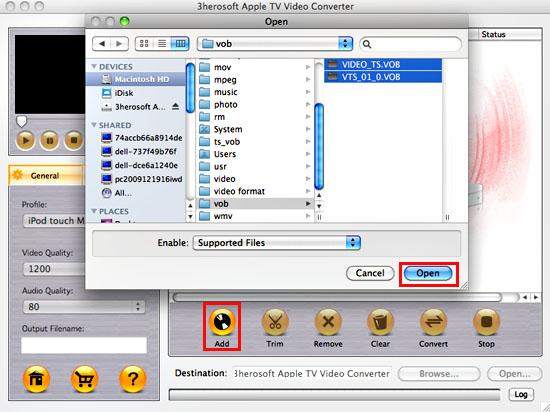
Click "Add" button on the toolbar or "File > Add" to load VOB files from your Mac, then select the video files and press the "Open" button to load files into this software.
Tips: After adding the input files to the Mac video converter for Apple TV, the main taskbar will show you the details of the input file, including file name, file type, and so on. There are also multiple settings for you to choose, you can remove the files input, or clear the taskbar, and trim the file and etc.

 Step2: Choose output format
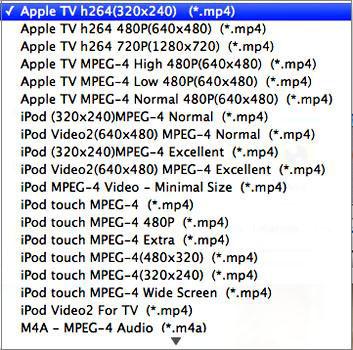
1)If you want to change the default target format, then choose the files to convert, and select the profile you want from the "Profile" drop-down list on the "General" tab.
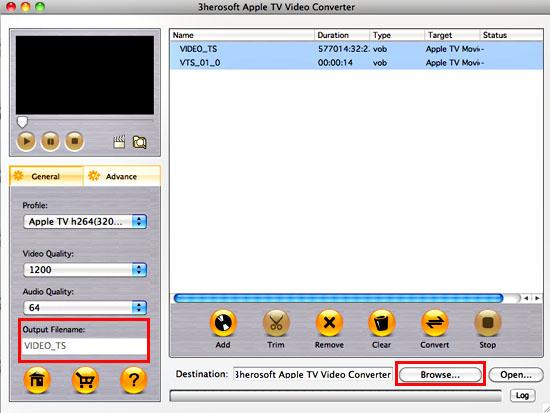
Click the "Browse" button to choose the folder to save the output files or just keep the default path, and enter the output file name you want in the "Output filename" textbox on the "General" tab.
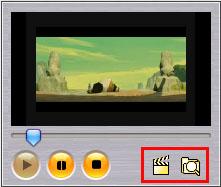
Before converting, you can preview the source file via the built-in player in the right bottom and also take a snapshot when previewing by clicking the "Capture Frame" button.
 Step3: Set output parameters
If you're not satisfied with the default settings of the profile, you can adjust the parameter settings. Change video quality and audio quality on the "General" tab, or go to the "Advance" tab, and set the following parameters: video size, bit rate, frame rate, aspect, etc.
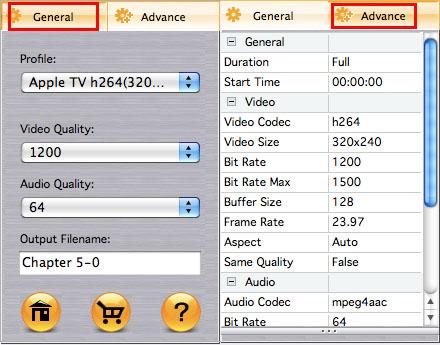
If you just want to convert certain segment of a video, you can make it by entering the duration and start time on the "Advance" tab or following the steps below to get the segment you want.
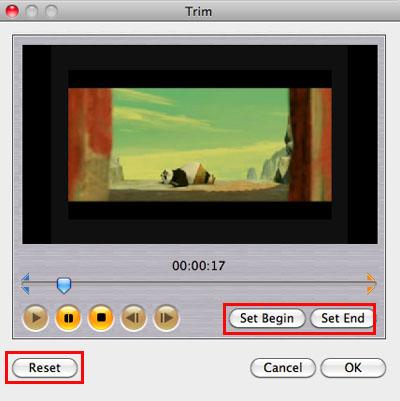
Choose the video you want to trim, and click the "Trim" button on the toolbar to enter the "Trim" window, then click the "Play" button to play the video. When it comes to the very start position, click the "Set Begin" button to set it as begin point, and then click the "Set End" button to set end point, then you will get the segment you want.
 Step4: Convert
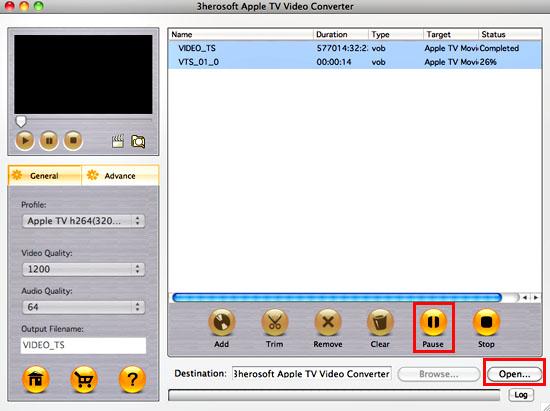
After everything is OK, click the "Convert" button on the toolbar to start converting.
|
Hot Tags: |
||||
 Buy 3herosoft Apple TV Video Converter for Mac $25.oo
 Download 3herosoft Apple TV Video Converter for Mac For Intel For PowerPC 8.89MB
