


Windows Products
- iPod / iPhone Tools
-
- iPod to Computer Transfer

- iPad to Computer Transfer

- iPhone to Computer Transfer
- iPhone Ringtone Maker
- iPhone SMS Transfer
- iPhone Contact Transfer
- iPhone Call List Transfer
- iPhone iBooks Transfer
- iPhone Photo Transfer
- iPod Mate
- iPhone Mate
- iPad Mate
- DVD to iPod Converter
- DVD to iPhone Converter
- DVD to iPad Converter
- iPod Movie Converter
- iPhone Video Converter
- iPad Video Converter
- iPod to Computer Transfer
- DVD Cloner Tools
- DVD Creator Tools
- Video Converter Tools
-
- Video Converter
- iPod Movie Converter
- iPhone Video Converter
- iPad Video Converter
- Apple TV Video Converter
- Video to Audio Converter
- AVI MPEG Converter
- MP4 Video Converter
- PS3 Video Converter
- PSP Video Converter
- WMV Video Converter
- 3GP Video Converter
- FLV Converter
- MOV Converter
- RM Converter
- Zune Video Converter
- BlackBerry Video Converter
- Mobile Phone Video Converter
- Video Converter
- DVD Ripper Tools
-
- DVD Ripper Platinum
- DVD to iPod Converter
- DVD to iPhone Converter
- DVD to iPad Converter
- DVD to Apple TV Converter
- DVD Audio Ripper
- DVD to MP4 Converter
- DVD to PS3 Converter
- DVD to PSP Converter
- DVD to WMV Converter
- DVD to 3GP Converter
- DVD to AVI Converter
- DVD to DivX Converter
- DVD to Pocket PC Ripper
- DVD to Zune Converter
- DVD to BlackBerry Converter
- DVD to Mobile Phone Converter
- DVD Ripper
- DVD Ripper Platinum
- Audio Tools
- PDF Tools
- Suite Tools
-
- Media Toolkit Ultimate

- DVD Ripper Platinum Suite
- DVD Maker Suite
- iPod Mate
- iPhone Mate
- iPad Mate
- DVD to iPod Suite
- DVD to iPhone Suite
- DVD to iPad Suite
- DVD to Apple TV Suite
- DVD to Audio Suite
- DVD to MP4 Suite
- DVD to AVI Suite
- DVD to PS3 Suite
- DVD to PSP Suite
- DVD to WMV Suite
- DVD to 3GP Suite
- DVD to Zune Suite
- DVD to BlackBerry Suite
- DVD to Mobile Phone Suite
- Media Toolkit Ultimate
Mac Products
- iPod / iPhone Tools
-
- iPod to Computer Transfer
- iPhone to Computer Transfer
- iPad to Computer Transfer
- iPhone Ringtone Maker
- iPhone SMS Transfer
- iPhone Contact Transfer
- iPhone Call List Transfer
- iPhone iBooks Transfer
- iPhone Photo Transfer
- iPod Mate for Mac
- iPhone Mate for Mac
- iPad Mate for Mac
- DVD to iPod Converter for Mac
- DVD to iPhone Converter for Mac
- DVD to iPad Converter for Mac
- iPod Video Converter for Mac
- iPhone Video Converter for Mac
- iPad Video Converter for Mac
- iPod to Computer Transfer
- DVD Cloner / Creator Tools
- Video Converter Tools
-
- Video Converter for Mac
- iPod Video Converter for Mac
- iPhone Video Converter for Mac
- iPad Video Converter for Mac
- Apple TV Video Converter for Mac
- Video to Audio Converter for Mac
- MP4 Converter for Mac
- FLV Converter for Mac
- PSP Video Converter for Mac
- BlackBerry Converter for Mac
- Mobile Phone Converter for Mac
- DVD Ripper Tools
- PDF Tools
- Suite Tools
-
- Mac DVD Toolkit
- DVD Ripper Suite for Mac
- DVD Maker Suite for Mac
- iPod Mate for Mac
- iPhone Mate for Mac
- iPad Mate for Mac
- DVD to iPod Suite for Mac
- DVD to iPhone Suite for Mac
- DVD to iPad Suite for Mac
- DVD to Apple TV Suite for Mac
- DVD to Audio Suite for Mac
- DVD to MP4 Suite for Mac
- DVD to FLV Suite for Mac
- DVD to PSP Suite for Mac
- DVD to BlackBerry Suite for Mac
- DVD to Mobile Phone Suite Mac
- Mac DVD Toolkit
3herosoft iPhone Video Converter for Mac


I have a very large collection of DVD's that I've copied over to my Mac, and I want to be able to put them in iTunes and on my iPhone 3G. I've searched the internet endlessly and all I've found are trial versions of overpriced software or converters that leave watermarks. Anyone out there know of a good program that's absolutely free, no strings attached? 3herosoft iPhone Video Converter for Mac is a perfect and smart MPG to iPhone converter that can help you convert MPG to iPhone format.
 iPhone MP4 video converter; convert all popular video formats to iPhone MP4
-
Convert general videos or audios to iPhone music MP3, M4A
-
Support iPod touch, iPod nano 5G, iPod classic, iPhone and iPhone 3G




How to convert VOB video files on Mac to make them fit for the iPhone devices you have? We will now introduce a step-by-step way to complete the task by 3herosoft iPhone Video Convertor for Mac. It will focus on the conversion from VOB video to MP4 for iPhone.
 Step1: Load Video Files
Install and launch 3herosoft iPhone Video Converter for Mac, click "Add" button on the toolbar or "File > Add" to load VOB videos from your Mac, then select the video files and press the "Open" button to load files into this software.

 Step2: Choose output format
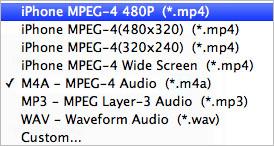
Choose the file you want to convert, click "Profile" drop-down button at the left side of the main interface to choose the formats you need, then click "Browse" button to choose destination folder for saving output files.
 Step3: Set some settings
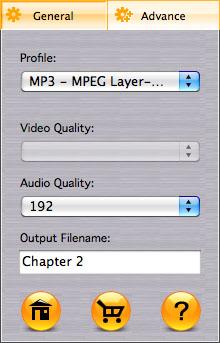
1)After selecting certain output format, you can choose "General" tab on the left which will show its general standard. You may set "Video Quality", "Audio Quality", "Output filename" by clicking "General" button.
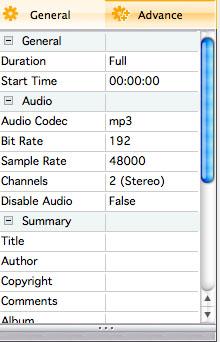
 After that, you can also choose "Advance" tab on the left column which will show its advanced standard.
You may set "Start Time", "Video Size", "Bit rate" by clicking certain settings.
After that, you can also choose "Advance" tab on the left column which will show its advanced standard.
You may set "Start Time", "Video Size", "Bit rate" by clicking certain settings.
 Step4: Convert
After all the settings of the video, you only need to click "Convert" button on the toolbar to complete the task.

1)Define the output profile list
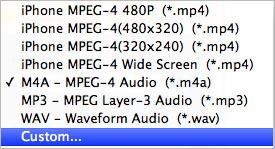
You can define the output profile list to show only the most commonly used formats. Click "Custom..." in "Profile" drop-down list, check the formats you want to list in "Profile" pop-up window. Close the window and you will save much time in finding them in the whole list.
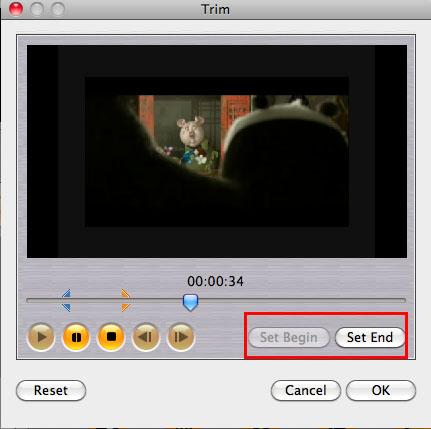
Before converting, you can trim your favorite segments to make a unique video. Select the video, click the "Trim" button on the toolbar and choose the beginning and end of the segment as you wish.
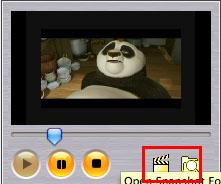
You are capable to make a stylish album using the snapshots taken from the video with this software. Click "Snapshot" button at the left top of the main interface to take snapshot when playing the video and save as BMP, click "Open Snapshot Folder" to check the snapshot. You can also define the destination in your hard disk to save the snapshots at "Snap" tab in "3herosoft iPhone Video Converter for Mac> Preferences".
|
Hot Tags: |
||||
 Buy 3herosoft iPhone Video Converter for Mac $25.oo
 Download 3herosoft iPhone Video Converter for Mac For Intel For PowerPC 8.88MB
