


Windows Products
- iPod / iPhone Tools
- DVD Cloner Tools
- DVD Creator Tools
- Video Converter Tools
- DVD Ripper Tools
- Audio Tools
- PDF Tools
- Suite Tools

Mac Products
3herosoft iPhone to Computer Transfer

"Plz I possess a new iPhone recently, and I want to transfer some videos to my iPhone. I know iTunes can do this, but it's not so convenient. Is there a third-part program can transfer video from computer to iPhone directly in few clicks? Anyone can help?" We recommend 3herosoft iPhone to Computer Transfer to help you out of this trouble completely; it is the professional iPhone to computer Transfer tool that can help you transfer video from computer to iPhone easily in a high quality and fast speed.
 Transfer video from iPhone to computer for backup
-
Transfer video from computer to iPhone without using iTunes
-
Sync iPhone audio and video to iTunes library (iTunes 10 supported now)




As the most powerful iPhone Transfer tool, 3herosoft iPhone to Computer Transfer can help you easily transfer video from computer to iPhone without iTunes' assistance. Meanwhile, it allows you to create and edit iPhone files playlists so that you can manage and classify your videos more conveniently and comfortably.
Attention: iPhone and iTunes have supported for many video formats, including M4V, MP4, MOV, MPEG-4, h264 and audio format such as MP3, WAV, AAC, Apple lossless, AIFF. If your video can not transfer successfully, make sure the video or audio format can be suitable for the iPhone supported. If not, firstly you should use 3herosoft iPhone Video Converter software to convert video or audio to the right format for your file backup on computer.
 Step1: Run 3herosoft iPhone to Computer Transfer after your installation.
 Launch this iPhone transfer software and connect your iPhone to your computer. Then you can see your iPhone on the desktop -- an iPhone icon with your iPhone's name under it. Then familiarize yourself with its interface. All information about your iPhone, such as type, capacity, version, serial number and format, will be shown on the main interface.
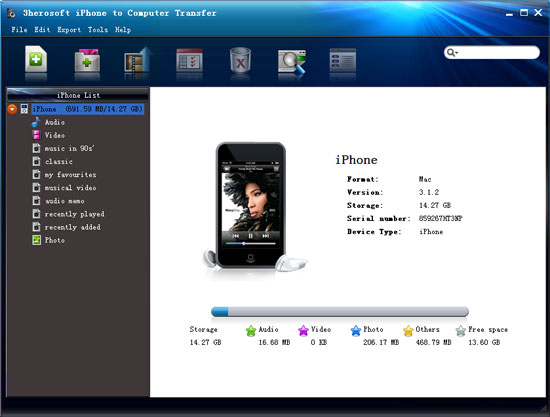 Step2: Check video you want to transfer
In this screen, you should choose "video" item in the iPhone list, then click "Add files to iPod/iPhone" button to transfer. Now a dialog box pops up and you can locate and check video files from your computer.
If you want to add all the files in a folder, please press " Add Folder to iPod / iPhone" button or choose "File > Add folder to list" option and then locate the folder and transfer all the files to iPhone.

 Step3: Transfer video from computer to iPhone
When everything is done, then press the "Open" button in the dialog box. After that, the selected videos or movie are added to the iPhone without iTunes right now! With this step, you can also copy all of files such as pictures, TV Shows, songs and podcasts etc. to iPod/iPhone.

|
Hot Tags: |
||||
 Buy 3herosoft iPhone to Computer Transfer $20.oo
 Download 3herosoft iPhone to Computer Transfer 5.82MB
