


Windows Products
- iPod / iPhone Tools
- DVD Cloner Tools
- DVD Creator Tools
- Video Converter Tools
- DVD Ripper Tools
- Audio Tools
- PDF Tools
- Suite Tools

Mac Products
3herosoft iPhone Ringtone Maker


The iPhone is the Device of the year. The Apple mobile phone has been really successful and it is difficult to find a person who is not looking forward to have one in his pocket. What is a trendy mobile phone without a trendy ringtone? That is the reason of iPhone Ringtone maker, an easy-to-use program named 3herosoft iPhone Ringtone Maker will offer you a best solution on how to easily make iPhone Ringtones and directly add them into iPhone/iPad 2/iPod touch. Free download this iPhone Ringtone Maker and customize your own iPhone ringtones from any video and audio files.
 Convert MP3 and clip it into iPhone ringtone files
 -
Extract any audio/video files into iPhone ringtone .m4r audio files
-
Transfer ringtone files to iPhone 3GS/iPhone 4/iPhone 4S/iPhone 5/iPad 2/iPod touch/PC/iTunes




3herosoft iPhone Ringtone Maker is a smart MP3 to iPhone Ringtone M4R maker which allows you to extract iPhone M4R ringtones from any audio/video files, and this article will tell you how to accomplish the iPhone ringtones making simply and quickly, and how to edit/manage iPhone ringtone in a better way.
Part 1: Getting Started
Part 2: Customize iPhone ringtones
Part 3: Generate/Manage ringtone
Free download 3herosoft iPhone Ringtone Maker then install and run it. And connect iPhone to your computer.
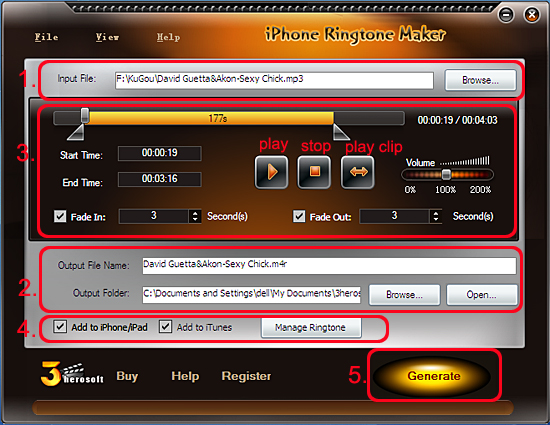

Step 1: Click "Browse" button and load your favourite video or audio files from the pop-up dialog box. Click the "OK" button in the box and the music/videos are added into "Input File" textbox.
Step 2: Enter your favorite ringtone name into "Output File Name" text box or you can keep the default name for your iPhone ringtone, and then select a target output folder by clicking the "Browse" button right beside "Output Folder" label, and you can also save the iPhone ringtone into the default path.
Step 3: Click "Play" button to preview the loaded music and find the part you like. Then drag the start & end sliders on slider bar to clip the music. You can also listen to the music clip by clicking "Play clip" button to check. Even you can add the fade-in/fade-out effect or adjust the volume for iPhone ringtone.
Tip: You can also trim music segment by clicking "Start Point" and "End Point" buttons when the player comes to the points you want, or entering start and end time directly into the corresponding text box (accurate to millisecond).
Sept 4: Check "Add to iPhone" checkbox and this iPhone ringtone maker will transfer ringtones to iPhone automatically after conversion.
Tip: Many options you can choose, check the "Add to iPhone/iPad" or "Add to iTunes library", even can check both of them. And the ringtone can be added to iPad/iPhone/iPod touch and iTunes at the same time.
Step 5: After the above settings were done, click "Generate" button to complete the iPhone ringtone making, you can see the process at the bottom, when it finished, click "Open" button to search for the ringtone files on PC or on your iPhone/iPad/iPod touch/ iTunes.
Part 2: Edit iPhone Ringtone
*Add fade-in and fade-out effects
Check "Fade in" and "Fade out" checkboxes and set exact values respectively to your preferences.
*Adjust ringtone volume
Drag the volume slider to set the ringtone volume easily.
Part 3: Manage iPhone ringtone
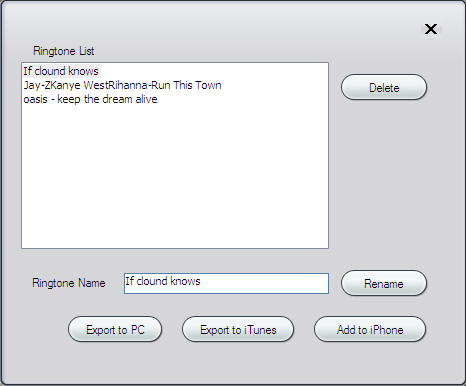
Click “Manage Ringtone?button at the bottom, and directly delete ringtones from iPhone in the pop-up “Ringtone list?dialog box. You can see all iPhone ringtones are listed in the box, select one or each of them to delete, rename or export it to different place such as backup it into iTunes/PC, or directly transfer it to iPad 2/iPhone/iPod touch.
|
Hot Tags: |
||||
 Buy 3herosoft iPhone Ringtone Maker $14.98
 Download 3herosoft iPhone Ringtone Maker 5.92MB
