


Windows Products
- iPod / iPhone Tools
- DVD Cloner Tools
- DVD Creator Tools
- Video Converter Tools
- DVD Ripper Tools
- Audio Tools
- PDF Tools
- Suite Tools

Mac Products
3herosoft iPhone Video Converter for Mac


Recently I have been asked often how to watch videos on iPhone 3G, iPhone 3GS, iPhone 4, iPhone 4S, iPhone 5. Most people that own an iPhone 3G know they can enjoy videos on their iPhones 3G but they don't know how to exactly. To watch the videos on your iPhone 3G or iPhone 3GS, you need to convert the videos to the iPhone supported formats like MPEG-4(MP4 for short). And 3herosoft iPhone Video Converter for Mac is the professional iPhone Video Converter software that can help you easily convert videos to MP4 format for iPhone.
 iPhone MP4 video converter; convert all popular video formats to iPhone MP4
-
Convert general videos or audios to iPhone music MP3, M4A
-
Support iPod touch, iPod nano 5G, iPod classic, iPhone and iPhone 3G




Wanna convert video to iPhone MP4 on Mac and enjoy videos on iPhone device. Firstly you have to use 3herosoft iPhone Video Converter for Mac to convert video to some certain video format files such as MP4, MOV, M4V, etc. that are supported by iPhone. And the following guide will supply a best article on how to convert video to iPhone MP4 files
 Step1: Load Video Files
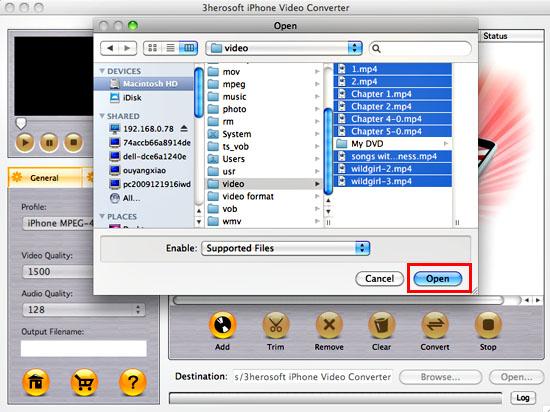
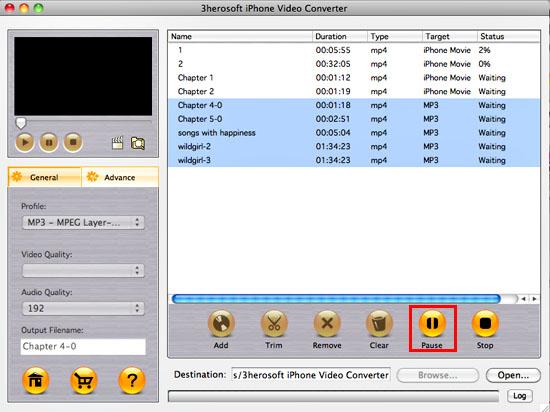
Install and launch 3herosoft iPhone Video Converter for Mac, click "Add" button on the toolbar or "File > Add" and a dialog window box will pop up, you can search video files on Mac, then select the video files and press the "Open" button to load files into software. If you wanna get the full version and purchase this video to iPhone converting tool.

 Step2: Choose output format
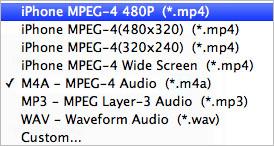
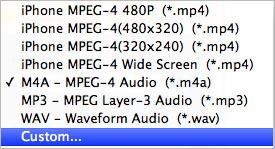
In the "General " panel, click "Profile" drop-down list and you will see all video format list on show. Choose "iPhone MPEG-4 480P(*.mp4)" option for output iPhone MP4 videos files. You can set different video formats for different video files you loaded. Then click "Browse" button to choose destination folder for saving output files.
 Step3: Set some settings
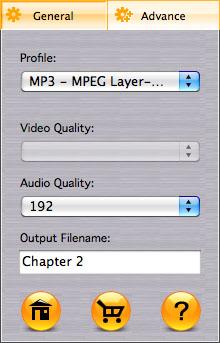
1)After selecting certain output format, you can choose "General" tab on the left which will show its general standard. You may set "Video Quality", "Audio Quality", "Output filename" by clicking "General" button.
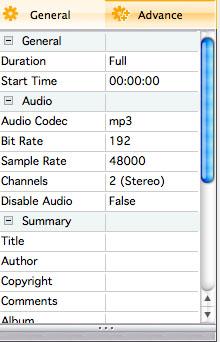
After that, you can also choose "Advance" tab on the left column which will show its advanced standard. You may set "Start Time", "Video Size", "Bit rate" by clicking certain settings.
 Step4: Convert video to iPhone conversion
After all the settings for video files, you only need to click "Convert" button on the toolbar to complete the task.
1)Define the output profile list
You can define the output profile list to show only the most commonly used formats. Click "Custom..." in "Profile" drop-down list, check the formats you want to list in "Profile" pop-up window. Close the window and you will save much time in finding them in the whole list.
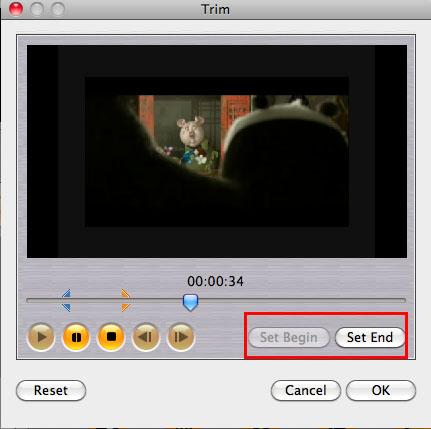
Before converting, you can trim your favorite segments to make a unique video. Select the video, click the "Trim" button on the toolbar and choose the beginning and end of the segment as you wish.
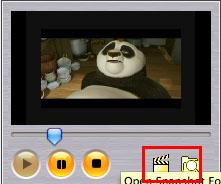
You are capable to make a stylish album using the snapshots taken from the video with this software. Click "Snapshot" button at the left top of the main interface to take snapshot when playing the video and save as BMP, click "Open Snapshot Folder" to check the snapshot. You can also define the destination in your hard disk to save the snapshots at "Snap" tab in "3herosoft iPhone Video Converter for Mac> Preferences".
|
Hot Tags: |
||||
 Buy 3herosoft iPhone Video Converter for Mac $25.oo
 Download 3herosoft iPhone Video Converter for Mac For Intel For PowerPC 8.88MB
