


Windows Products
- iPod / iPhone Tools
- DVD Cloner Tools
- DVD Creator Tools
- Video Converter Tools
- DVD Ripper Tools
- Audio Tools
- PDF Tools
- Suite Tools

Mac Products
3herosoft iPhone to Computer Transfer


Help you export iPhone contacts to a .CSV file is very useful in many situations. For example to sync iPhone contacts TO Gmail, Outlook, Yahoo!, Hotmail,... and that iPhone contacts consists of Name, Mobile, Phone, G-mail, etc. In order to solve this problem, you have to need iPhone contacts to computer transfer tool to help you backup iPhone contacts on computer. Now we strongly recommend 3herosoft iPhone to Computer Transfer which can fast transfer contacts from iPhone to computer and serve as .CSV files to view on Outlook without any loss.
 Transfer contacts from iPhone to computer
 -
Add music/video to iPhone and transfer music/video from iPhone to computer
-
Export iPhone contacts as .TXT file and CSV file




We have already written a guide on how to export iPhone contacts to computer as .CSV files backup. Now let's see how we can export iPhone contact in Windows XP as CSV file and you can open this .CSV file in Excel or you can import this iPhone contacts file in any other email application or mobile device. Following the tutorial and backup iPhone contacts as .CSV to computer and view it on Outlook with 3herosoft iPhone to Computer Transfer.
 Step1: Connect iPhone to computer
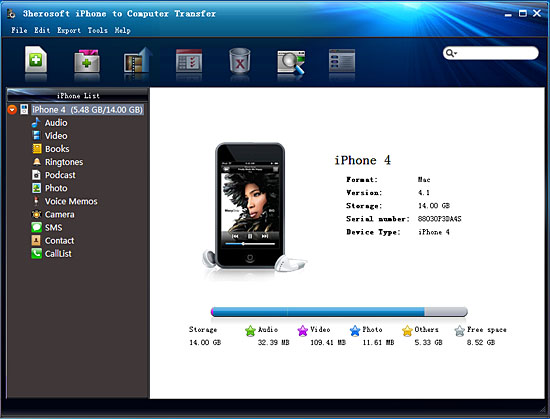
Download 3herosoft iPhone Contact to Computer Transfer, install and run it. Once you connect iPhone to computer, you will see iPhone device info including Type, Capacity, Version, Serial Number and Format are shown in the main interface. And in the left panel, you can see all iPhone folder such as Audio, Video, Books, Ringtones, Voice Memos, Camera, SMS, Contact, Call list, etc. are also displayed under iPhone list. If you purchase this iPhone contact transfer, lots of practical functions await for you and without any limitation.
 Step2: Export iPhone contacts as .CSV to computer
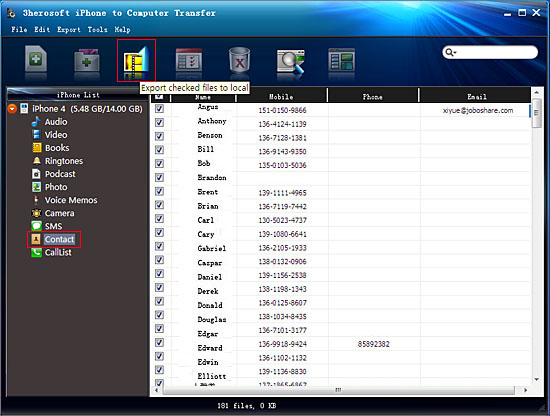
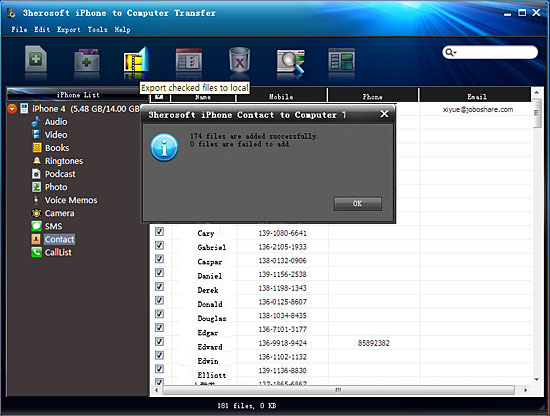
Open "Contact" library in iPhone list, a small window box will eject to show you the sync process between software and iPhone. Several minutes later, all iPhone contact info such as Name, Mobile, Phone, Email, etc. are shown in the interface. Select and check the iPhone contacts, then press "Export checked files to local" button in the toolbar bar while choose a proper target folder to save contacts in the pop-up window box. Finally, press "Save as..." button to start exporting iPhone contacts as .CSV files on computer. You can view it on Outlook totally.
 Step 3: Restore iPhone contacts from .CSV to Outlook
1: Backup all your contacts from iPhone to computer as .csv file format using 3herosoft iPhone to Computer Transfer.
2: Click on Start - All Programs - Accessories, click to open Address Book. In Address Book, click File - Import - Other Address Book..., select "Text File (Comma Separated Values)", click Import, then browser the CSV file, click Next, Map the fields you wish to import, click finish. After all this, you had import the contacts to your Windows Address Book.
3: Open Outlook; Open the File menu; Choose "Import and Export"; In the "Import and Export Wizard" dialog box choose "Import Internet email and address", then choose "OUTLOOK EXPRESS 4.X 5.X 6.X", click "Next".
OK, from above article, you can try 3herosoft iPhone to Computer Transfer software to transfer contacts from iPhone to computer as .CSV files. Furthermore, you can also export and backup other files including audio, videos, photos, books, camera, voice memos, SMS, and call list from iPhone to your computer. If you have an iPhone, it is a must-have utility to keep your iPhone safe.
|
Hot Tags: |
||||
 Buy 3herosoft iPhone to Computer Transfer $20.oo
 Download 3herosoft iPhone to Computer Transfer 5.82MB
