

Windows Products
- iPod / iPhone Tools
-
- iPod to Computer Transfer

- iPad to Computer Transfer

- iPhone to Computer Transfer

- iPhone Ringtone Maker

- iPhone SMS Transfer
- iPhone Contact Transfer
- iPhone Call List Transfer
- iPhone iBooks Transfer
- iPhone Photo Transfer
- iPod Mate
- iPhone Mate
- iPad Mate

- DVD to iPod Converter
- DVD to iPhone Converter
- DVD to iPad Converter

- iPod Movie Converter
- iPhone Video Converter
- iPad Video Converter

- iPod to Computer Transfer
- DVD Cloner Tools
- DVD Creator Tools
- Video Converter Tools
-
- Video Converter

- iPod Movie Converter
- iPhone Video Converter
- iPad Video Converter

- Apple TV Video Converter
- Video to Audio Converter
- AVI MPEG Converter
- MP4 Video Converter
- PS3 Video Converter
- PSP Video Converter
- WMV Video Converter
- 3GP Video Converter
- FLV Converter
- MOV Converter
- RM Converter
- Zune Video Converter
- BlackBerry Video Converter
- Mobile Phone Video Converter
- Video Converter
- DVD Ripper Tools
-
- DVD Ripper Platinum

- DVD to iPod Converter
- DVD to iPhone Converter
- DVD to iPad Converter

- DVD to Apple TV Converter
- DVD Audio Ripper
- DVD to MP4 Converter
- DVD to PS3 Converter
- DVD to PSP Converter
- DVD to WMV Converter
- DVD to 3GP Converter
- DVD to AVI Converter
- DVD to DivX Converter
- DVD to Pocket PC Ripper
- DVD to Zune Converter
- DVD to BlackBerry Converter
- DVD to Mobile Phone Converter
- DVD Ripper
- DVD Ripper Platinum
- Audio Tools
- PDF Tools
- Suite Tools
-
- Media Toolkit Ultimate

- DVD Ripper Platinum Suite
- DVD Maker Suite
- iPod Mate
- iPhone Mate
- iPad Mate

- DVD to iPod Suite
- DVD to iPhone Suite
- DVD to iPad Suite

- DVD to Apple TV Suite
- DVD to Audio Suite
- DVD to MP4 Suite
- DVD to AVI Suite
- DVD to PS3 Suite
- DVD to PSP Suite
- DVD to WMV Suite
- DVD to 3GP Suite
- DVD to Zune Suite
- DVD to BlackBerry Suite
- DVD to Mobile Phone Suite
- Media Toolkit Ultimate
Mac Products
- iPod / iPhone Tools
-
- iPod to Computer Transfer

- iPhone to Computer Transfer

- iPad to Computer Transfer

- iPhone Ringtone Maker

- iPhone SMS Transfer
- iPhone Contact Transfer
- iPhone Call List Transfer
- iPhone iBooks Transfer
- iPhone Photo Transfer
- iPod Mate for Mac
- iPhone Mate for Mac
- iPad Mate for Mac
- DVD to iPod Converter for Mac
- DVD to iPhone Converter for Mac
- DVD to iPad Converter for Mac
- iPod Video Converter for Mac
- iPhone Video Converter for Mac
- iPad Video Converter for Mac
- iPod to Computer Transfer
- DVD Cloner / Creator Tools
- Video Converter Tools
-
- Video Converter for Mac
- iPod Video Converter for Mac
- iPhone Video Converter for Mac
- iPad Video Converter for Mac

- Apple TV Video Converter for Mac
- Video to Audio Converter for Mac
- MP4 Converter for Mac
- FLV Converter for Mac
- PSP Video Converter for Mac
- BlackBerry Converter for Mac
- Mobile Phone Converter for Mac
- DVD Ripper Tools
- PDF Tools
- Suite Tools
-
- Mac DVD Toolkit

- DVD Ripper Suite for Mac
- DVD Maker Suite for Mac
- iPod Mate for Mac
- iPhone Mate for Mac
- iPad Mate for Mac

- DVD to iPod Suite for Mac
- DVD to iPhone Suite for Mac
- DVD to iPad Suite for Mac

- DVD to Apple TV Suite for Mac
- DVD to Audio Suite for Mac
- DVD to MP4 Suite for Mac
- DVD to FLV Suite for Mac
- DVD to PSP Suite for Mac
- DVD to BlackBerry Suite for Mac
- DVD to Mobile Phone Suite Mac
- Mac DVD Toolkit
3herosoft iPhone to Computer Transfer

"You can record a meeting or any audio with Voice Memos. Save these important records in your iPhone you can use them in the future. But if you want to share voice memos files or edit them by some maker tools, you must transfer the voice memos files from iPhone to computer. Now the first thing you must do is to search for a best iPhone transfer to help you move iPhone voice memos. And you can use third party software -3herosoft iPhone to Computer Transfer we recommend to help you out of this trouble and after move voice memos to computer, you can send them via email or MMS."
Move voice memos from iPhone to computer
Transfer voice memos from iPhone to iTunes library
Sync iPhone voice memos files to iTunes library

Have you been confused about how to move iPhone voice memos to computer? And in this article, we will tell you a best solution on moving voice memos from iPhone to computer with 3herosoft iPhone to Computer transfer, which is very popular iPhone voice memos transfer all over the world.
Launch this iPhone to Computer Transfer software and connect iPhone to your computer. Then you can see all information about your iPhone, such as Type, Capacity, Version, Serial Number, and Format, will be shown on the main interface.
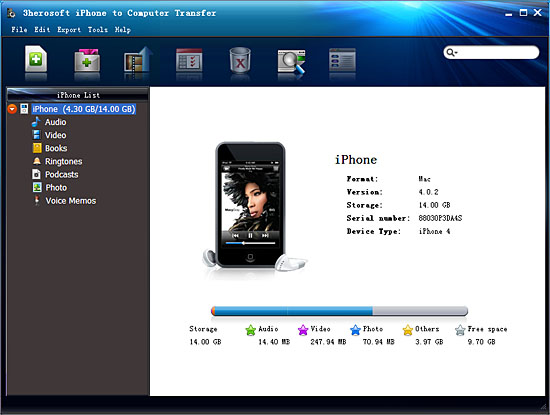

1)Open the "Voice Memos" library that you want to transfer. All voice memos files are shown in file list.
2)Search for the files you want to transfer and check them for ready to export.
3)Click the "Export->Export to local" on the top-menu, or directly click the "Export checked files to local" button to export and select the target folder for saving iPhone files in the dialog that pops up, and press "Save" button and start to move voice memos from iPhone to computer.


|
Hot Tags: |
||||