


Windows Products
- iPod / iPhone Tools
- DVD Cloner Tools
- DVD Creator Tools
- Video Converter Tools
- DVD Ripper Tools
- Audio Tools
- PDF Tools
- Suite Tools

Mac Products
3herosoft iPhone to Computer Transfer for Mac


So many iPhone users usually purchase and free download songs, podcast, books, iTunes U, audiobooks on iTunes store in iPhone directly. And such amounts of files are saved on iPod library in iPhone device. In case of iPhone crashed or damaged to lost those files, sync them to iTunes library on Mac local. And 3herosoft iPhone to Computer Transfer for Mac program will be best program and easily allow you to sync iPhone downloaded files to iTunes library on Mac.
 Transfer purchased songs on iPhone to Mac
-
Sync the purchased music/Albums to iTunes library
-
Export downloaded books/podcasts/iTunes U to Mac or sync to iTunes




All the purchased and free downloaded files (songs, podcast, audio book, books, iTunes U, Ringtones) are in the iPhone library. For iPhone novice, it is very important to sync iPhone purchased files backup on iTunes library in cashed of iPhone crashed, but how? Search for the program, you will find 3herosoft iPhone to Computer Transfer for Mac, it allows you to easily sync all purchased files (songs, podcast, books, audiobook, iTunes U) to iTunes library. And the article below will tell you the solution on sync purchased files to iTunes step by step.
 Step1: Run the software and connect iPhone to Mac
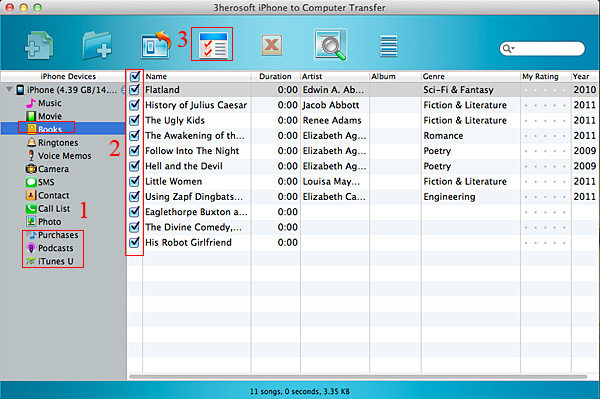
Run the 3herosoft iPhone to Computer Transfer for Mac software and turn into its interface, connect iPhone to Mac, you will see all iPhone items are shown as below, such as Music, Video, Photo, Books, Ringtones, Camera, Contact, SMS, Call List, playlist, purchases, Podcasts, iTunes U, etc.
 Step2: Sync the purchased files on iPhone to iTunes library
In the left panel of the program interface, you will see three useful icons for this exporting files on Mac course. There are Purchases (purchased songs), Podcasts, Books, iTunes U, respectively.
1) Click "Purchases" "Books" "iTunes U" or "Podcasts" in the list, and you will see all files your purchased on iPhone in the interface. Purchased songs in the "purchases" folder and Books folder consists of the purchased books, downloaded on website on computer, epub, pdf, audiobook are supported. They are all in the "Books" folder.
2) Open your favourite purchased items and select/check what you wanna export to Mac, and then press "Export checked files to iTunes" button to sync the selected files to iTunes library.
3) iTunes will be run automatically this time, and the copying files process will be displayed on the interface, in iTunes panel, iPhone purchased files sync in progress are shown up in the top progress bar. Few minutes later, you can view all files on iTunes library.
Tips and Notes:
When all purchased files are synced to iTunes library, as you know, they will be shared in the Home Share option, that means, you can sync the purchased files to other Apple Devices, such as iPhone 4, iPad, iPad 2, iPod touch, iPod touch 4. Just connect them on Mac and sync the files to its library with iTunes correctly.
Other Skills:
1)Transfer iPhone music/video/podcast/playlist/camera/voice memos/ringtones/book/photos to Mac local, you can view them on Mac computer.
2) Sync all listed folders (music,video, podcast, playlist, books, ringtones, TV Show, iTunes U, etc.) to iTunes library.
3) Export iPhone SMS, Call List and Contact files to Mac local, save them as TXT format on computer, but for contact transfer, you can keep contact as .csv files that import contact in OutLook or other Address Book in Mac.
4) Import music/video files from Mac to iPhone library without using iTunes, only for the certain/supportive video/audio formats that work well on iPhone device.
|
Hot Tags: |
||||
 Buy 3herosoft iPhone to Computer Transfer for Mac $25.oo
 Download 3herosoft iPhone to Computer Transfer for Mac 5.50MB
