


Windows Products
- iPod / iPhone Tools
- DVD Cloner Tools
- DVD Creator Tools
- Video Converter Tools
- DVD Ripper Tools
- Audio Tools
- PDF Tools
- Suite Tools

Mac Products
3herosoft iPhone to Computer Transfer for Mac

All downloaded files such as songs, podcast, books, iTunes U are stored on iPhone library, and books are displayed on iBook store. For so many files security and best access to edit or review, we'd better transfer all purchased songs/books and free downloaded podcast/iTunes U to Mac local for backup. And I strongly recommend 3herosoft iPhone to Computer Transfer for Mac program and it can easily transfer downloaded songs, podcasts, books, iTunes U, audiobooks, etc. on iPhone to Mac computer.
 Transfer purchased songs on iPhone to Mac
-
Sync the purchased Music/Albums to iTunes library
-
Export downloaded books/podcasts/iTunes U to Mac or sync to iTunes




The purchased songs/podcasts/books/iTunes U on iPhone can be delivered into certain folders, you can check them on iPod library in your iPhone, also in the 3herosoft iPhone to Computer Transfer for Mac program, it will list different folders for storing its relevant files on iPhone. Besides this, the program wil help you manage the iPhone files well, you can view the files and can transfer iPhone downloaded files to Mac local fast and easily.
 Step1: Run the software and connect iPhone to Mac
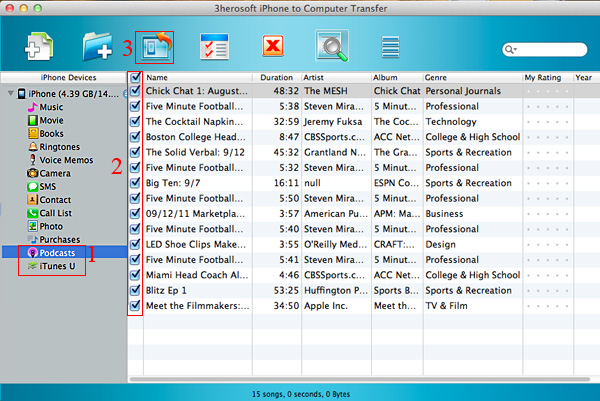
Run the 3herosoft iPhone to Computer Transfer for Mac software and turn into its interface, connect iPhone to Mac, you will see all iPhone items are shown as below, such as Music, Video, Photo, Books, Ringtones, Camera, Contact, SMS, Call List, playlist, purchases, Podcasts, iTunes U, etc.
 Step2: Export purchases/podcast/iTunes U/Books to iTunes library
In the left panel of the program interface, you will see three useful icons for this exporting files on Mac course. There are Purchases (purchased songs), Podcasts, Books, iTunes U, respectively.
1) Click "Purchases" "Books" "iTunes U" or "Podcasts" in the list, and you will see all files your purchased on iPhone in the interface. Purchased songs in the "purchases" folder and Books folder consists of the purchased books, downloaded on website on computer, pdf, epub, audiobook are supported. They are all in the "Books" folder.
2) Open your favourite purchased items folder and select/check what you wanna export to Mac, and then press "Export checked files to local" button to transfer purchased files from iPhone to Mac. And a dialog box will eject at once, choose a backup folder on your Mac.
3) Press "Save" button in the pop-up box, you will see the purchased files you selected on software interface will be copying into Mac local. When it finished, check the exported files on Mac local folder.
Other Skills:
1)Transfer iPhone music/video/podcast/playlist/camera/voice memos/ringtones/book/photos to Mac local, you can view them on Mac computer.
2) Sync all listed folders(music,video, podcast, playlist, books, ringtones, TV Show, iTunes U, etc.) to iTunes library.
3) Export iPhone SMS, Call List and Contact files to Mac local, save them as TXT format on computer, but for contact transfer, you can keep contact as .csv files that import contact in OutLook or other AddressBook in Mac.
4) Import music/video files from Mac to iPhone library without using iTunes, only for the certain/supportive video/audio formats that work well on iPhone device.
|
Hot Tags: |
||||
 Buy 3herosoft iPhone to Computer Transfer for Mac $25.oo
 Download 3herosoft iPhone to Computer Transfer for Mac 5.50MB
