


Windows Products
- iPod / iPhone Tools
- DVD Cloner Tools
- DVD Creator Tools
- Video Converter Tools
- DVD Ripper Tools
- Audio Tools
- PDF Tools
- Suite Tools

Mac Products
3herosoft iPhone to Computer Transfer


"Because your iPhone goes with you everywhere, you're always ready to capture every moment. And with iPhone 4, you can do it in stunning high definition. But now you wanna edit lots of camera roll you record by iPhone, first you should back these files at your computer. And how? which program can help you? At this time we recommend you our product 3hersoft iPhone to Computer Transfer software to help you easily transfer iPhone camera rolls you record to computer. Please have a try!"
 Transfer iPhone camera roll you record to computer
-
Quickly browse iPhone library for camera rolls
-
Sync iPhone camera rolls to iTunes library (iTunes 10 supported now)




Transfer iPhone Camera Roll files you record to computer by iPhone 4 and you edit, share or make a whole movie on your computer. So the article listed below will tell how to easily and fast transfer iPhone camera roll files to computer with 3herosoft iPhone to Computer Transfer. See more details as below: hope you have your own movie you record.
 Step1: Install the software and run it
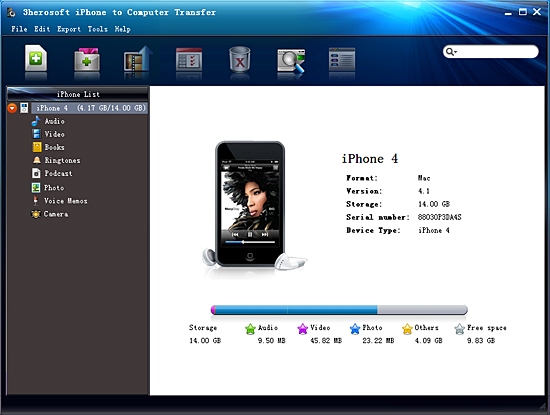
Run this software and connect iPhone 4 computer with the unique USB cable by Apple. Then computer, all information about iPhone 4, such as Type, Capacity, Version, Serial Number, and Format, will be shown on the main interface with intuitive and elegant features.
 Step2: Transfer iPhone camera roll to computer
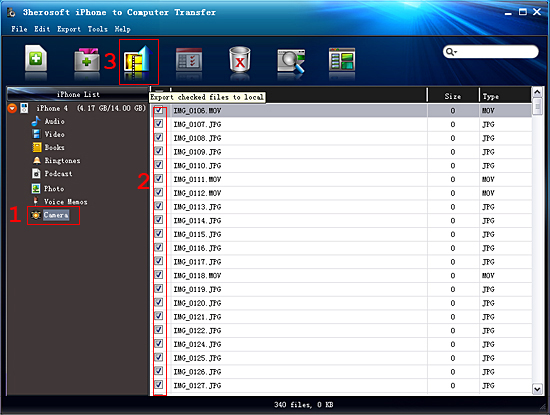
1) Click the "Camera" icon under iPhone library list and you can see all camera rolls files you record (video and photo) are displayed in file browser. And *.jpg files is all entire photos you take and video files are show *.mov type.
2) Find the files you want to transfer and check them.
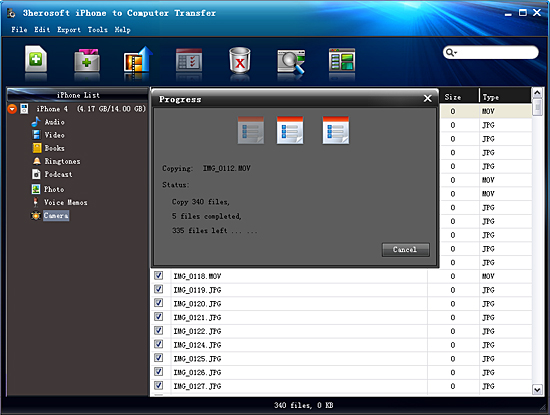
3) Choose the "Export the checked to local" option on the top "Export" menu, or directly click the "Export checked files to local" button to export files to local, before it, you should first select the saving destination for iPhone camera roll files in the dialog that appears, and press "Save" button and start to transfer iPhone camera roll to computer.
|
Hot Tags: |
||||
 Buy 3herosoft iPhone to Computer Transfer $20.oo
 Download 3herosoft iPhone to Computer Transfer 5.82MB
