


Windows Products
- iPod / iPhone Tools
- DVD Cloner Tools
- DVD Creator Tools
- Video Converter Tools
- DVD Ripper Tools
- Audio Tools
- PDF Tools
- Suite Tools

Mac Products
3herosoft iPhone Call list to Computer Transfer

The best way to copy iPhone music playlists to computer for recovering some important playlist, you can copy iPhone playlist to computer with 3herosoft iPhone Call List to Computer Transfer. We will offer you a best solution on how to transfer playlists to computer. And even this software can help you add music/video to iPhone, transfer music/video from iPhone to computer, iphone to iTunes library. Free download this iPhone call list to computer transfer and have a try.
 Copy iPhone call list to computer for backup
-
Add music/video to iPhone and transfer music/video from iPhone to computer
-
Sync iPhone audio and video to iTunes library (iTunes 10 supported now)




Do you want to transfer playlists from iPhone to computer for recovery? You can try 3herosoft iPhone Call List to Computer Transfer. This software can easily transfer playlists from iPhone to computer hard drivers as music folders. Also it even allows you to sync iPhone playlists to iTunes library. Learn the following article step by step and get the best solution on this iPhone Call List Transfer.
 Step1: Connect iPhone to computer
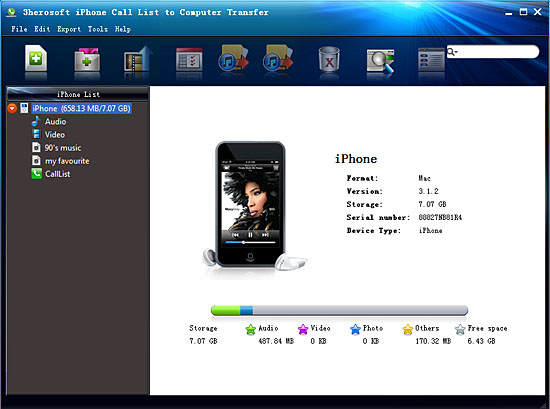
Download 3herosoft iPhone Call List to Computer Transfer, install and run it. An elegant and intuitive interface is shown in front of your eyes. Connect iPhone to computer. And you will see the right of interface will display iPhone device info such as Type, Capacity, Version, Serial Number and Format. And the left of panel you can see all the iPhone library folders (audio, video, podcast, call list) in the list.
 Step2: Transfer iPhone playlists to computer
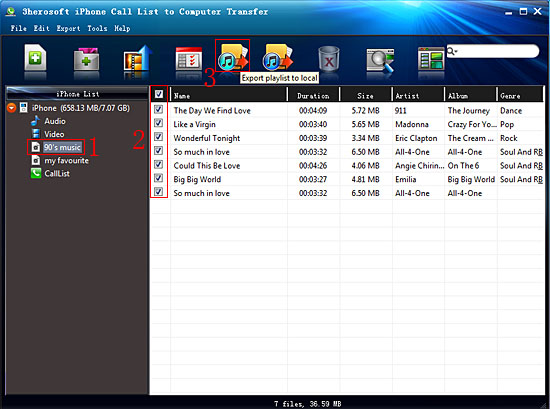
1) Click "Playlist" icon in the iPhone list to open iPhone playlist folder and check the music files in it. Make sure music files in the music playlist are without any loss. Even you can select any music files in the certain iPhone music playlist.
2) Turn to the top toolbar, press "Export playlist to local" button to start to copy iPhone playlist to computer. You will see the copying progress in the pop-up window. Before you export, select a target folder to save the iPhone playlist files on your computer hard driver.
 Step 3: Sync iPhone playlists to iTunes library
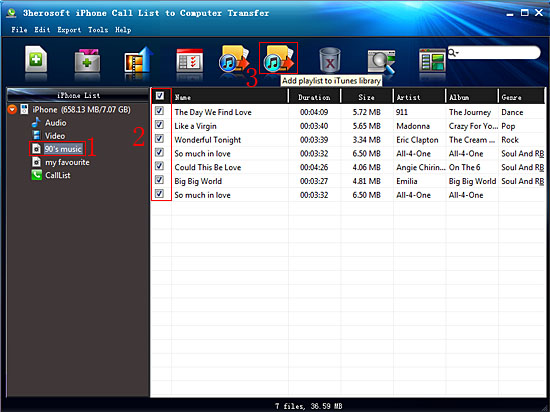
1) All iPhone playlist in iPhone library, and sync them into iTunes library will be best choice for managing iPhone playlist. Check the iPhone playlists including all music files, and press "Export playlist to iTunes" button to start to sync iPhone playlists to iTunes library. Several minutes later, all iPhone playlist are transferred into iTunes libary.
2) When the process is over, close the 3herosoft iPhone Call Lists to Computer Transfer software and run the iTunes to check the playlist. Open iTunes, and you will see the sync process in the top, few minutes later, all iPhone playlist will be shown in the iTunes list.
|
Hot Tags: |
||||
 Buy 3herosoft iPhone Call list to Computer Transfer $9.98
 Download 3herosoft iPhone Call List to Computer Transfer 6.68MB
